
Using Text-Em-All with CATAPULT by ECRS
Connecting Text-Em-All + CATAPULT
Follow these steps to turn on the Text-Em-All + CATAPULT integration.
- Create a Text-Em-All account here.
- Contact ECRS by submitting a support ticket referencing the Text-Em-All Integration.
- During this, ECRS will contact Text-Em-All to connect the two systems.
- Once complete, the Text-Em-All account will be connected to CATAPULT enabling the integration.
If you need help getting started, contact ECRS to begin.
Note:
- Only 1 Text-Em-All account can be linked to 1 CATAPULT account.
- This is because tracking shopper opt-in and opt-outs is done at the Text-Em-All account level. To keep your opted-in subscribers in sync with CATAPULT, a 1-1 connection is required.
- Please let Text-Em-All know if you need multiple Text-Em-All accounts linked to your organization’s CATAPULT account.
Using the Text-Em-All + CATAPULT Integration
Once the integration is connected, you can use Text-Em-All to send text broadcasts to CATAPULT customer groups.
To do this, simply go to Create Broadcast inside Text-Em-All.
At Step 2, there’s an option to Add from ECRS. Click that to see all Customer Groups that contain at least 1 shopper that is opted into SMS marketing.
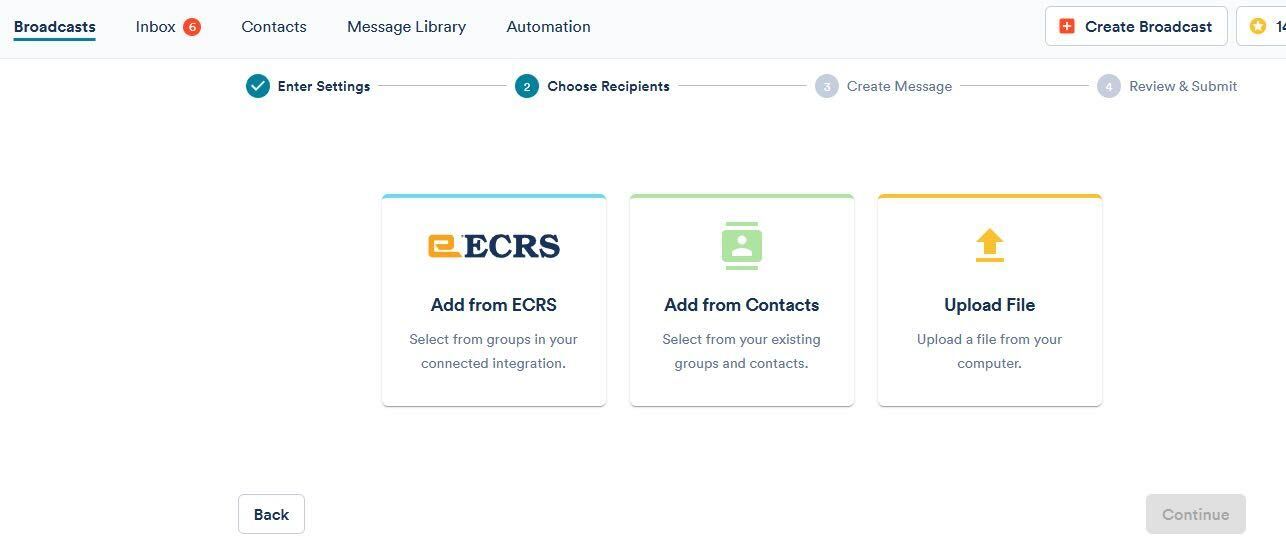
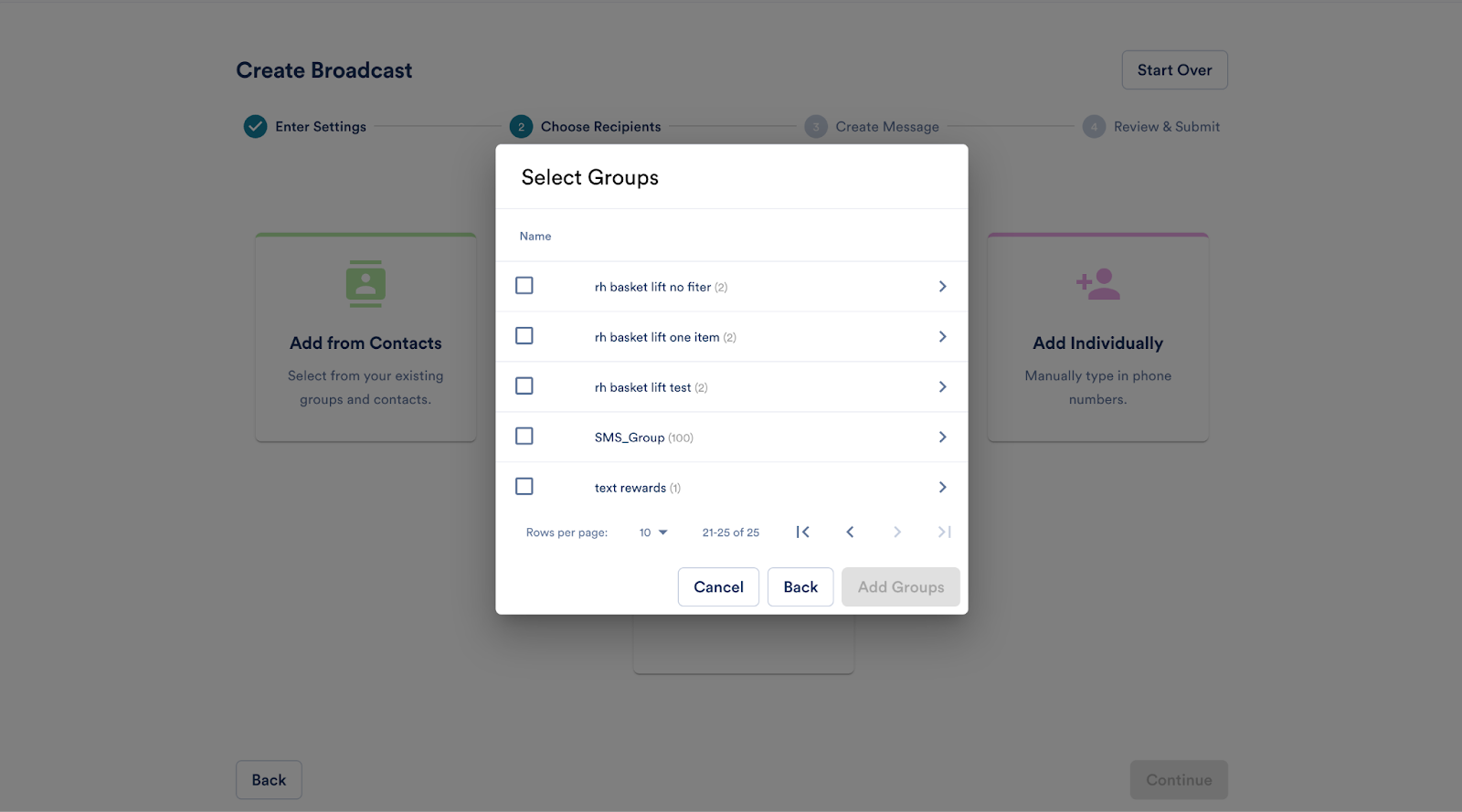
When browsing each Customer Group, you will see the number of total shoppers within the Customer Group. Remember, each shopper may have multiple phone numbers. We recap the total number of phone numbers you’ll be texting once you add the Customer Group(s) to the broadcast.
Contact ECRS if you want to learn more about using CATAPULT to create customer groups or leveraging LoyaltyBot to automatically assign Customers to Customer Groups.
Opt-In and Opt-Out Syncing
Sending marketing SMS messages to shoppers who have not opted in carries heavy legal and reputational risk. To help with this, Text-Em-All + CATAPULT keep opt-in and opt-out data synced between the two systems in real-time.
Remember, ECRS Retailers can only send a Text-Em-All Broadcast to shoppers through the integration who are marked as 'Opted in for Text Marketing.’
Opt-Ins
- Whenever a shopper is opted into marketing texting from Text-Em-All (ex: using a Text-Em-All join keyword, uploading a file of shoppers to opt in, etc.), Text-Em-All updates CATAPULT so that the phone number that just completed opt-in will show as opted-in in CATAPULT.
- Whenever a shopper requests to opt-in to marketing SMS messages from CATAPULT, Text-Em-All will send a text message to the shopper’s phone number asking them to reply with ‘JOIN.’ Once the shopper replies with ‘JOIN,’ they will receive a confirmation text message and will appear as opted in both within Text-Em-All and CATAPULT.
Opt-Outs
- Whenever a customer opts-out of text messages from Text-Em-All, we send an opt-out confirmation to the shopper and mark them as opted out both in Text-Em-All and CATAPULT. Once a shopper’s phone number is opted out of Text-Em-All, they can only opt back in by texting ‘UNSTOP’ to the retailer’s text number.
- Whenever a customer opts-out of text messages from Text-Em-All via CATAPULT (web-cart, at the cashier, in CATAPULT), we send an opt-out confirmation to the shopper and mark them as opted out both in Text-Em-All and CATAPULT. Once a shopper’s phone number is opted out of Text-Em-All, they can only opt back in by texting ‘UNSTOP’ to the retailer’s text number.
Viewing the opt-in report
The Opt-In Report gives you one place to see every marketing text opt-in, whether it came through Text-Em-All or through your CATAPULT by ECRS point of sale. It records the phone number, the date and time each contact opted in, and the method they used. That makes it your record of consent when you need to confirm how someone joined your marketing list.
What the report tracks
For every marketing text opt-in, the report shows three things:
- Phone number of the contact who opted in.
- Date added, the timestamp of when they opted in.
- Method, how they opted in.

Where the opt-ins come from
Opt-ins are captured in two places and land in the same report, so you don't have to reconcile two systems. Use the list on the left to filter by a single method, or select All to see everything together.
- Text-Em-All methods: Join Page, Join Keyword, Manual, and Other.
- CATAPULT methods: CATAPULT POS, CATAPULT Webcart, and CATAPULT Other.
Downloading and searching the report
- Select the download icon in the top right to export the full report.
- Select the search icon to look up a specific phone number, for example when you need to show when and how that contact opted in to marketing texts.
Who can see the opt-in report
The Opt-In Report is available to customers on a Promotional Profile. If you're using the CATAPULT by ECRS integration, you have access to it.
Emergency SMS Opt-Out Phone Number
If the integration fails to opt a shopper out of marketing SMS messages through WebCart(Point of Sale, webcart, and in Web Office), an error message will display telling the shopper there was an error and that they can opt out by texting ‘STOP’ to your text number.
If the integration fails to opt a shopper out of marketing SMS messages through the Point of Sale or WebOffice, an error message will display telling the cashier or WebOffice user saying there was an error and that the customer can opt out by texting ‘STOP’ to your text number.
This way, API errors won’t put you at risk of failing to help someone opt out.
The phone number displayed in the error message to the shopper is the first text number your Text-Em-All account had. The Emergence SMS Opt-Out Phone Number can be updated through your Text Marketing Third Party Service Profile in CATAPULT..
To learn more about Third Party Service Profiles, access your Docs site via myECRS. Contact ECRS support for more help.